Removing backgrounds from images is easier than ever with the new AI Background Remover in Photoshop. Just click once on your photo and you can separate the background from your subject without creating paths around the edges for hours!
Although AI Background Remover is very convenient to use, many users encounter difficulties using AI Background Remover, often resulting in problems with incorrect selection, rough edges or missing details.These problems are common areas where users experience problems when attempting to remove backgrounds from photos containing complex elements found in real-life, such as shadows or reflections, similarly coloured items, or fine details like hair and/or furs.
This comprehensive guide will teach you how to fix these types of problems when using the Photoshop AI Background Remover, as well as provide you with a list of both basic and advanced techniques for how to resolve these types of problems. We will also go over situations when hunting down professional background removal services providers or clipping path services would be better suited for achieving high-quality, consistent results.
What Is the Select Background Tool in Photoshop?
Adobe Sensei is an artificial intelligence (AI) feature that has the ability to identify backgrounds and separate them from the main subject of the image without any user input. In other words, you don’t need to manually select parts of an image; Rather, Adobe Photoshop uses things like patterns, edges, color, and contrast to figure out where different parts of the photo are located.
This app is very helpful for people who don’t have much experience editing pictures because there is no way they can make careful, quality selections as quickly as a computer will or data scientist can. However, keep in mind that this tool is not 100% accurate and can sometimes incorrectly detect items when they are too complex in detail.
How the tool works internally
- It scans the image to identify the main subject
- It analyzes surrounding areas to determine what belongs to the background
- It uses edge detection and contrast to create a selection
- It refines the selection automatically using AI models
While this process is highly advanced, it still depends heavily on the quality and structure of the image. If the input image is not ideal, the output will also be flawed.
Why Photoshop Select Background Is Not Working
Identifying precisely what caused the issue is critical to fixing it successfully. Many people err by attributing fault to the tool rather than examining the image or how the tool is being applied.
1. Low Resolution and Poor Image Quality
A key factor for Select Background failing is having a poor-quality image. When the image is blurry, pixelated, or compressed, Photoshop does not have enough details to accurately detect the edges of your selection. This will result in selections that are either incomplete or full of incorrect information.
In the case of high-resolution images, the edges will be clearer, and the color transitions will be smoother; therefore it will allow the AI to create a better selection. In contrast, using low-quality images creates confusion for the AI algorithm and produces a bad selection.
2. Lack of Contrast Between Subject and Background
Background selection is heavily reliant on contrast. When a subject has the same colour or tone as its background, it can be very difficult to differentiate between the two in Photoshop. This issue occurs frequently for every user.
An example would be using a white (or near white) product on a white (or light) background; this can create an issue for the AI to know where the boundaries of the subject (the product) are in relation to the background (which is also white). A similar example would be if your subject (a product) is black (or near) and your background is black (or dark).
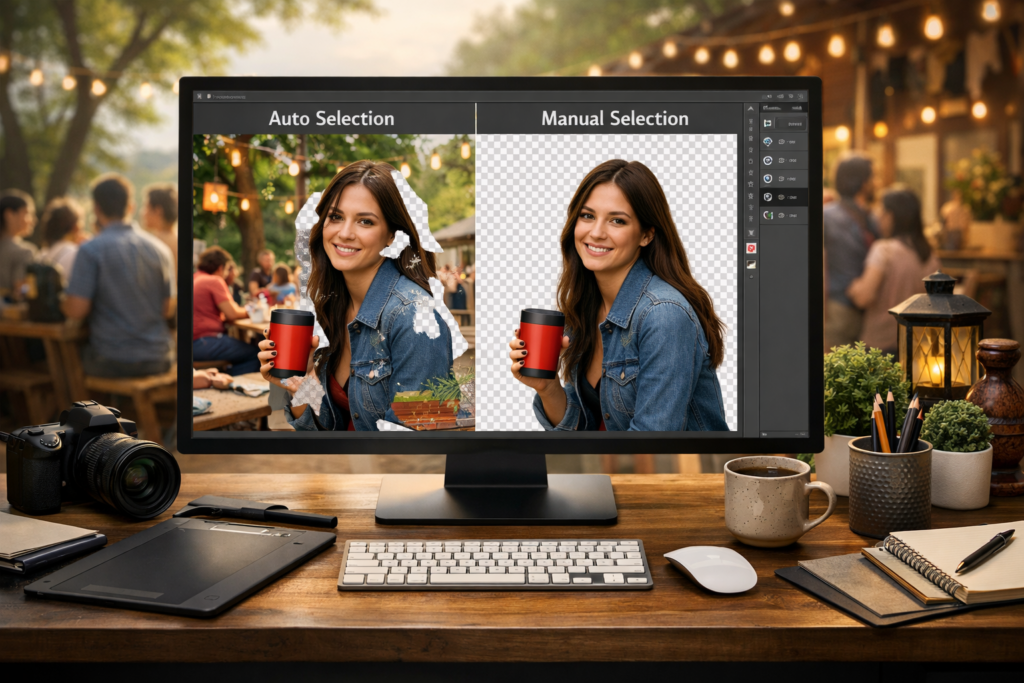
3. Complex Backgrounds with Multiple Elements
Using the Select Background tool is difficult when your image has a lot going on, such as several objects, patterns, textures, and cluttered surroundings. It will take the whole image and try to separate the background but will probably add something unwanted into your selected background or take away some of the subject from your selection.
This is especially common in:
- Outdoor photography
- Lifestyle images
- Group photos
- Product images with props
4. Soft Edges and Fine Details
Using the Select Background tool is difficult when your image has a lot going on, such as several objects, patterns, textures, and cluttered surroundings. It will take the whole image and try to separate the background but will probably add something unwanted into your selected background or take away some of the subject from your selection.
As a result, you may notice:
- Missing hair strands
- Rough cutouts
- Unnatural edges
- Loss of detail
5. Shadows, Reflections, and Lighting Issues
Photoshop’s AI may be perplexed by shadows and reflection, since they frequently meld into the backdrop, thus adding false edges to the subject; this is compounded by the fact that uneven lighting can play a role in how the tool interprets an image.
6. Outdated Photoshop Version or System Issues
Performance problems with AI tools may also be caused by not having enough RAM or system resources available as well as having disabled GPU acceleration in Photoshop. If either of these items is an issue then the feature will not function properly despite the image having nothing wrong with it and vice versa. Using older versions of Photoshop or, in some cases disabling the option for GPU acceleration could also cause performance issues with AI tools too.
Quick Fixes to Solve Select Background Problems
Now that you understand the reasons behind the issue, let’s look at practical solutions that can help you fix it quickly.
Use Select Subject First
Instead of directly using Select Background, start by selecting the subject and then invert the selection.
Steps:
- Go to Select → Subject
- Click Select → Inverse
This method often produces better results because Photoshop is more accurate at detecting subjects than backgrounds.
Increase Contrast Before Selection
Enhancing contrast helps Photoshop detect edges more clearly. You can adjust brightness, contrast, or levels to make the subject stand out from the background.
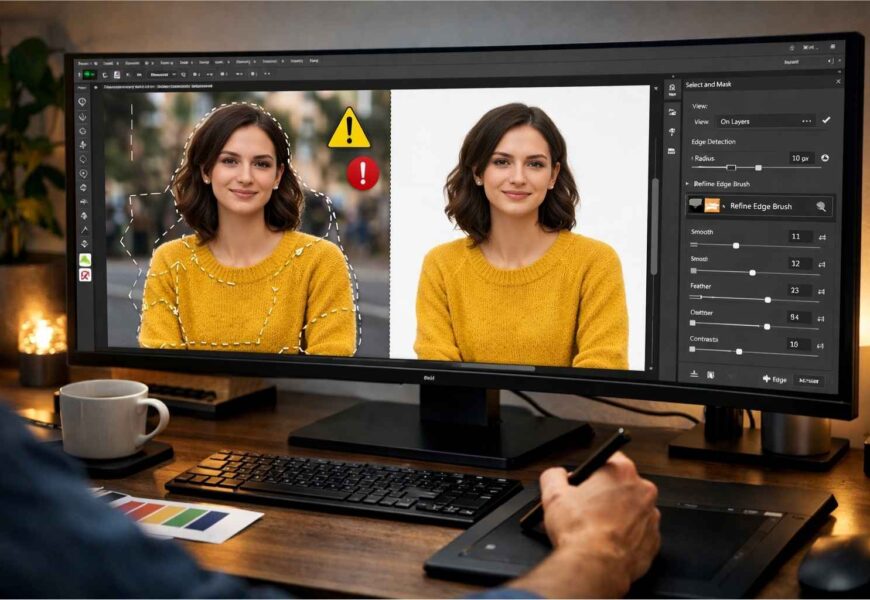
Use Select and Mask for Refinement
The Select and Mask workspace provides advanced tools for refining selections and improving edge quality.
Key tools:
- Refine Edge Brush Tool
- Smooth
- Feather
- Contrast
Manually Adjust the Selection
Automatic tools are not always perfect, so manual correction is necessary. Use tools like the Quick Selection Tool, Lasso Tool, and Brush Tool to refine the selection.
Reset Photoshop Preferences
Resetting preferences can fix bugs or glitches that may be affecting the tool.
Enable GPU Acceleration
Ensure GPU acceleration is enabled to improve performance and accuracy.
Advanced Techniques Used by Professionals
For professional-quality results, advanced techniques are essential.
Combining Multiple Tools
Professionals do not rely on a single tool. Instead, they combine different selection methods to achieve better accuracy and control.
Channel-Based Selection
Using channels allows you to create highly accurate selections for complex images, especially those with fine details.
Pen Tool for Precision (Clipping Path)
The Pen Tool is the most accurate method for selecting objects with hard edges. It is widely used in clipping path services because it provides precise and clean results.
When Photoshop Is Not Enough
Even with advanced techniques, some images are too complex to handle efficiently. These include images with fine details, transparent objects, reflections, and intricate patterns.
In such cases, manual editing by professionals becomes necessary.
Why Use Background Removal Services
Professional Background Removal Services provide high-quality results that are difficult to achieve with automated tools alone.
Benefits:
- Pixel-perfect edges
- Time-saving for bulk editing
- Consistent quality
- Advanced editing techniques
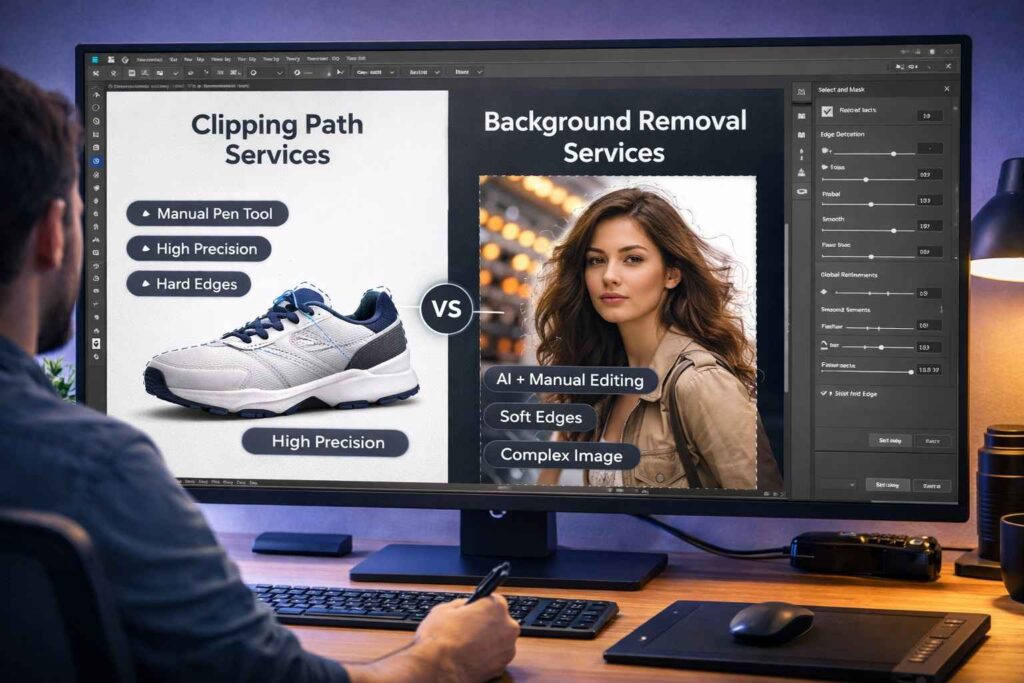
Clipping Path Services vs Background Removal Services
Clipping Path Services
- Manual method using Pen Tool
- Best for hard-edge objects
- Highly precise
Background Removal Services
- Combination of AI and manual editing
- Suitable for complex images
- Handles soft edges
Real-World Use Case: eCommerce Editing
eCommerce platforms require clean, professional images. Poor background removal can reduce trust and affect sales. That’s why businesses rely on professional services.
Best Practices to Avoid Issues
- Use high-resolution images
- Maintain contrast
- Use proper lighting
- Avoid cluttered backgrounds
- Keep software updated
Common Mistakes to Avoid
- Over-relying on AI tools
- Ignoring refinement
- Using low-quality images
- Skipping manual edits
Professional Workflow
- Import image
- Analyze complexity
- Apply Select Subject
- Refine selection
- Use Pen Tool
- Clean manually
- Export
Final Thoughts
Although Photoshop’s Select Background feature provides a simple means of making quick edits to a photo, it is not reliable enough to create accurate and precise selections for Photoshopping photos in most cases. When working with complex images, low-contrast images, and fine detail (such as hair and shadows), the Select Background tool will often take longer to retouch than doing it manually.
If you want to improve your results using automatic tools, then combining your efforts with manual tools and methods such as www.chrisstatic.com or the Pen Tool is very beneficial.
FAQs
Select Subject + Select and Mask.
For precise edges and product images.