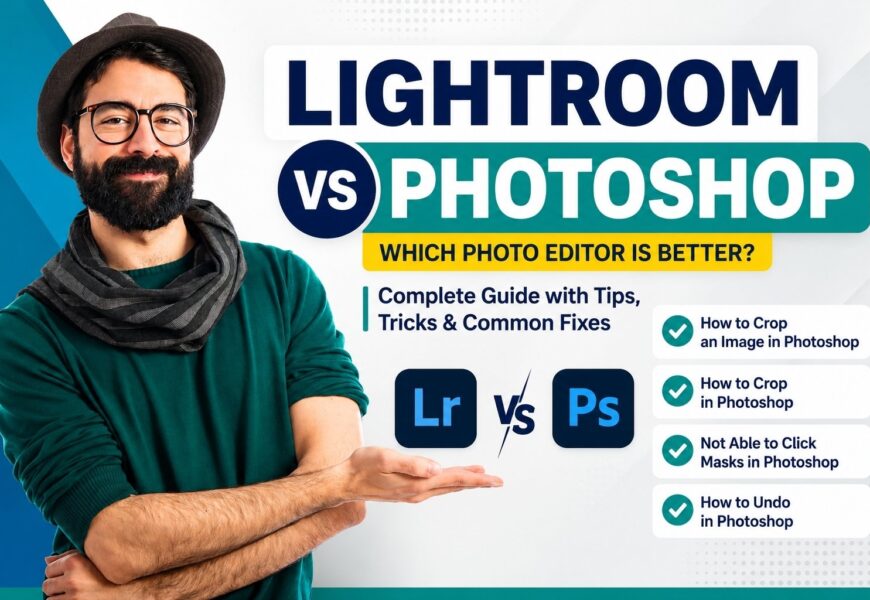
The question of Lightroom vs Photoshop is probably the toughest choice photographers, designers, and digital artists face. Both products were developed by the same company (Adobe), have many similarities, and are incredibly powerful, but have distinct uses. There are some people who are convinced Lightroom can be used instead of Photoshop, whereas there are those who are sure Photoshop is a full-featured editor that does not need any substitutes.
It is much easier to understand the Lightroom vs Photoshop difference when you learn the specific purpose of each product. Lightroom was developed to organize, process, and optimize photos, while Photoshop is known for its advanced image editing, compositing, graphic design features, and retouching possibilities.
If you are a beginner photographer who edits photos from vacations, or wedding photographer who works with thousands of RAW files, or designer who creates marketing materials, it is important to know about advantages of each software in order to speed up your workflow.
This guide covers key differences, describes practical workflow, and provides answers to popular Photoshop questions, including how to crop photo in Photoshop, how to crop in Photoshop, unable to click masks in Photoshop, and how to undo in Photoshop.
Understanding Lightroom
Lightroom is basically an imaging application that helps photographers organize and make changes to their photos in non-destructive ways. All of the changes that you make will be saved in the form of editing instructions instead of changing the file itself. This makes Lightroom perfect for photographers who have many photos to manage.
Rather than working on one photo at a time, the software allows users to make use of presets, synchronize their changes, use keywords to organize images, create collections, and export many files at once in various formats.
Lightroom can also be synchronized through the cloud which means that it is easy to edit your photos on a desktop computer, tablet or mobile device.
Understanding Photoshop
Photoshop is considered to be one of the most sophisticated photo editing programs. In contrast to Lightroom, Photoshop works with particular photos applying layers, masks, selections, filters and other advanced features.
Graphic designers, advertisers, digital artists, and photo retouchers need to use Photoshop, as it gives pixel editing opportunities. It is possible to eliminate unnecessary elements, change backgrounds, create compositions, design posters, restore old photos, and even create such artwork that cannot be achieved in Lightroom.
Lightroom vs Photoshop: Major Differences
When comparing Lightroom vs Photoshop, the biggest distinction lies in workflow rather than editing quality.
1. Image Organization
The Lightroom software has a full-featured image catalog that enables the photographer to keep track of thousands of images by means of folders, rating, flagging, color, keywords, and collections. The search for any particular image becomes much easier since all images are catalogued. This system of cataloging is particularly useful for wedding photographers, travel photographers, and commercial studios with huge collections of images.
However, Photoshop lacks the ability to catalog any images. Individual images are usually opened and edited.
2. Editing Style
The Lightroom software uses the non-destructive editing method, which implies that any change done to the photo will not affect the original file. This means that you can always modify your changes because there is no change made to the pixels of the photos; just instructions for editing.
In Photoshop, there are two methods of editing, either destructive or non-destructive, based on the style of editing employed in a particular project.
3. Retouching Capabilities
Lightroom comes equipped with some basic image retouching features that can be used to remove blemishes, correct colors, adjust lighting, and even enhance portraits fast. However, those are enough for daily use when you do not have time for extensive editing.
When it comes to professional image retouching, Photoshop is a better choice, as it offers powerful healing brushes, frequency separation, masks, content-aware tools, and accurate selections, making it possible to do very complex editing work.
4. Graphic Design Features
Probably one of the major reasons that professionals prefer Photoshop is because of its great number of graphic design functions. Here you can work with typographic elements, geometric figures, vector graphics, smart objects, blending modes, and custom illustrations all at once. Thus, Photoshop becomes perfect for making marketing graphics, advertisements, and website graphics.
As far as Lightroom is concerned, it deals exclusively with photo editing and does not have any graphic design functions.
Lightroom vs Photoshop for Beginners
The question that most beginner users ask themselves is if they should begin using Lightroom or Photoshop.
In case your main priority is photo editing, color adjustment, management, and fast exportation of pictures, it is easier to learn how to work with Lightroom.
In case you need full control of every pixel, you would like to do digital painting, background manipulation, or composite professional pictures, it is better to learn how to work with Photoshop, even if it requires more skills.
For many professionals, however, the decision about which program to use is not a choice. They use both Photoshop and Lightroom together.
How to Crop an Image in Photoshop
One of the very first things that every photo editor should learn is cropping an image in Photoshop, since the process of cropping an image makes the composition look better and eliminates any distractive elements.
In order to do so, open your image and click on the Crop Tool from the toolbar or simply press “C” on your keyboard. The crop frame will appear all around your image. You can drag the borders of the crop to define the area that you wish to leave in your image while getting rid of any unimportant parts of the picture.
How to Crop in Photoshop Efficiently
If you are not sure how to crop in Photoshop in an efficient manner, there are some useful suggestions that will help you save your time.
Use the feature called Rule of Thirds grid to ensure better composition when cropping. To straighten the horizon, use the tool known as Straighten Tool, which is useful when cropping landscape or architectural photographs. You may also use the feature called Content-Aware Crop to fill the gaps caused by rotation.
Not Able to Click Masks in Photoshop
There are instances when users find themselves unable to click masks in Photoshop. The problem normally arises from the selection of a layer that is incompatible with masks, or if the mask’s thumbnail is inactive.
The first step involves selecting the right layer from the Layers panel. In cases where the layer mask icon cannot be clicked, one needs to make sure that the right layer such as a Smart Object, adjustment layer, or locked layer is used. A reset of the workspace or restarting Photoshop will help solve interface related issues when the mask tools cannot be used.
It is important for users to understand layer masks since they provide non-destructive editing, which makes Photoshop much more versatile than any other erasing technique.
How to Undo in Photoshop
Understanding the technique of undoing an action in Photoshop allows avoiding errors and helps experiment when working on the picture.
The fastest way is to press Ctrl + Z in Windows and Command + Z in Mac OS. Recent versions of Photoshop offer the possibility to undo several actions one after another without opening extra panels. For more control, one can use the History panel to see the whole chain of performed actions.
Regular use of this feature guarantees safe work with the picture since it allows experimenting without ruining anything.
When Should You Use Lightroom?
Lightroom is recommended if your job is mostly about photography.
The application works exceptionally well when you need to edit RAW files, sort thousands of photographs, color grade your photos consistently, batch process your album and export photos across several platforms. The wedding photographer, travel photographer, wildlife photographer, and events professional find Lightroom quite useful since it cuts down editing time without compromising on image quality.
When Should You Use Photoshop?
Photoshop is always the first choice when Photo Editing goes beyond basic improvements.
The process of replacing the background, professional retouching, restoration, manipulation of photos for commercial purposes, digital art, combining several images, advertising layout, and creative work needs the capabilities of Photoshop. Layer-based editing enables full control of any aspect of the image.
Can Lightroom and Photoshop Work Together?
Certainly. Adobe created both pieces of software to be perfectly integrated.
There are many people who import their RAW files into Lightroom, edit them on the basic level and then move to Photoshop to edit those chosen images. When editing process is finished, the file goes back to Lightroom Catalog.
This way, we can get the best combination of convenience and creativity.
Conclusion
When it comes to Lightroom vs Photoshop, there is no definite winner since these two software programs serve various purposes. While Lightroom is meant to provide speed, organization, and photo editing efficiency, Photoshop gives users the opportunity to create freely and edit their photos.
If you are working on managing big galleries of pictures and applying uniform adjustments, Lightroom will be the perfect choice for you. When you need to work on retouching, designing graphics, or compositing photos, it is time to use Photoshop.
Instead of thinking about Lightroom vs Photoshop, consider using both of these programs at once, as complementary to one another. This will help you create an amazing workflow suitable for photographers, marketers, and other creative people who want to improve their skills.
Getting acquainted with the basics of Photoshop usage and learning how to crop an image in Photoshop, how to crop in Photoshop, how to deal with situations when you can’t click masks in Photoshop, and how to undo actions in Photoshop will be a great step forward in your work with photos.